


Notifications have been given a holistic makeover so they’re now the most powerful they have ever been. Read about the quality updates we have released below.

It’s super simple to access your notifications from your personal dashboard. Simply look for the bell icon with a badge and expand your notification tray to read them.
Easily subscribe to Cards
We’ve designed our notifications to be relevant but not too frequent, ensuring that you only receive updates about things you really want to stay posted about. There’s therefore two ways in which you can easily manage what kinds of notifications you receive:
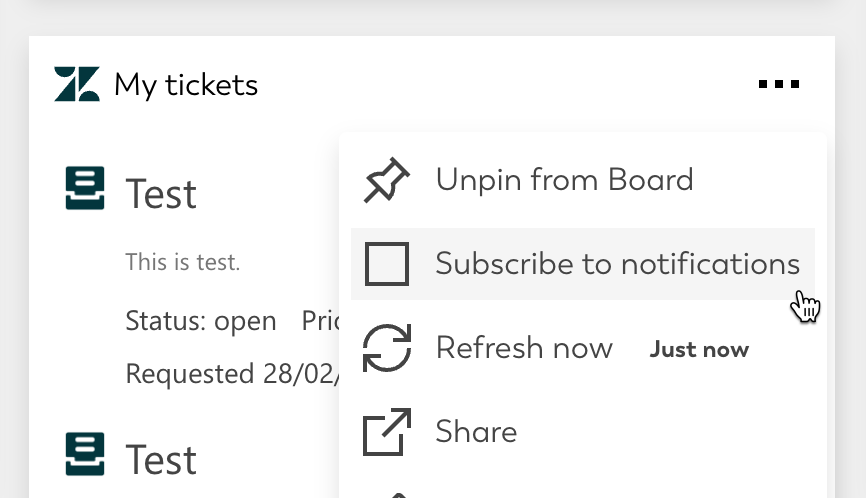
- Subscribe to Cards that are on your dashboard
Just click the ··· menu on any Card and then click on Subscribe to notifications. Now whenever your Card has something new to show you, it will send you a notification to your Notifications panel. This could be handy if you want to tidy up your dashboard, as you can unpin all those cards you’re subscribed to, without missing out on their updates. - Unsubscribe from nuisance notifications with ease
The reverse is also possible. You may receive notifications that aren’t that relevant to you, either because you have this card on your dashboard anyways, or perhaps the connected app isn’t something you use a lot. In that case,

Make notifications relevant
With the built-in Adaptive Card designer, you can now easily tweak some essential notification properties, such as the verbiage that should be used or what counts as “new” when triggering a notification.
Design informative notification texts
You can use information from your the connected API’s response to craft a custom and informative notification text. To start open your Adaptive Card in the Designer, then click on Settings → Notifications → Enable Send notifications for this Card.

The notification text accepts Adaptive Expressions, which allows you to abstract and aggregate a summary of what’s new into your notification’s text.
For example you can use:
- ${count(items)} to give you the number of items in the array items of your API’s response. Adjust this to whatever the name of your array is in your case
- ${if(today >= yesterday, ‘going up’, ‘going down’)} would compare a value to another value, and say the value is either going up or down
- ${items[0].title} will print the title attribute of the first item in your items array
Determine when a notification triggers
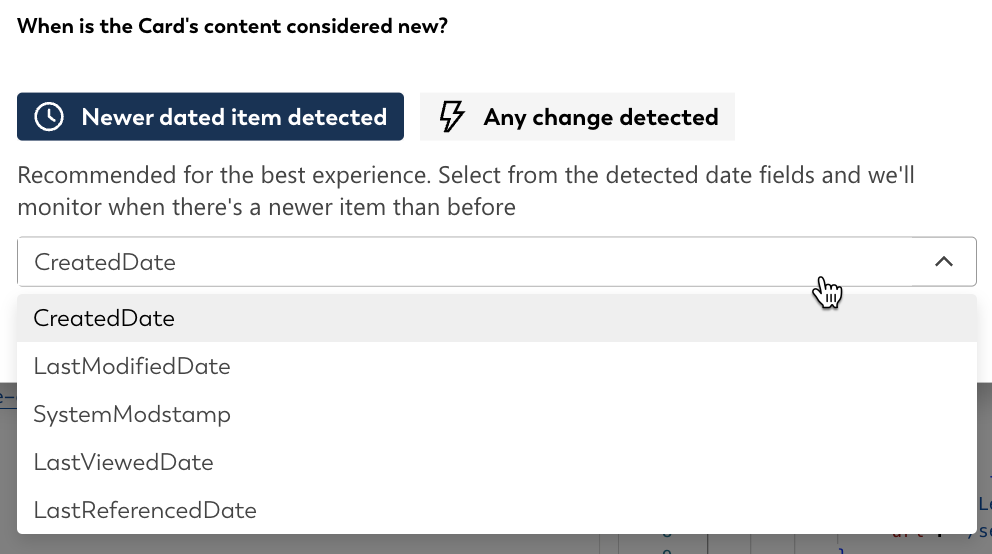
In the Adaptive Card Designer navigate to Settings → Notifications to find the section that says When is the Card’s content considered new?
Here you have two modes:
- Newer item detected: This shows you a list of any field in your API’s response that are a timestamp. Select one of the fields and this will be monitored, and a notification will be triggered whenever a more recent date is observed. This is useful if the API’s response can change, for example as older items disappear from the response, without misfiring notifications at every little change.
- Any change detected: With this mode, the API response is monitored as a whole. Any change in the response, however minor, will trigger a new notification. Without a timestamp field being detected in the API response, this will be the only available mode.
These are the small updates we have made to notifications. Do you like these improvements? Let us know in the comments below.


