


Announced in May 2025, SharePoint’s Dashboard web part lets you build targeted, role-based intranet experiences in minutes. As it is powered by Viva Connections and Adaptive Cards you can use this new web part as a way to easily surface data from 3rd party apps, such as ServiceNow, Workday, PowerBI and dozens more.
Why the Dashboard web part is so significant
Gone are the days when Viva Connections dashboards lived only on your tenant’s home site. Now, any Teams or Communication Site can host cards that pull in everything from PTO balances to live ticket queues—no code required. Thanks to Adaptive Cards support (both Microsoft-built and partner-built), you can integrate third-party tools like ServiceNow, HubSpot, SAP, and more via adenin’s pre-built connector app (available free on Microsoft AppSource). That means every department gets a personalized “home page” where employees find exactly what they need, right when they need it.
In this article we collect the 10 best, actionable dashboard ideas, complete with real-world app recommendations that help your SharePoint drive adoption, productivity, and ROI.
HR: a self-service hub

Empower employees to manage their own requests and information without sifting through emails. With the Dashboard web part and Adaptive Cards, you can embed:
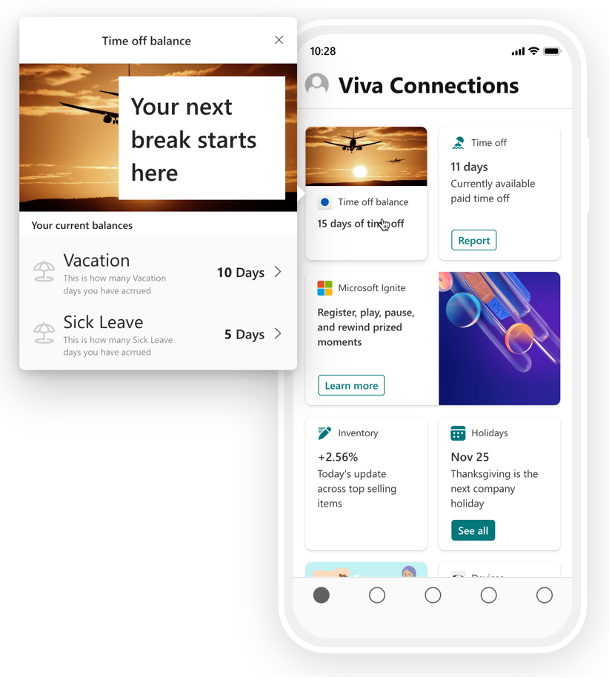
- Time-Off Balances Use Adaptive Card standard Leave and Time Off card template—customized via the Adaptive Card Designer—to show real-time PTO balances directly from BrightHR, SAP, Workday, and many others.
- Benefits Enrollment Status Surface pending enrollments from Workday with a partner-built Adaptive Card connector, complete with actionable buttons to review plan details .
- Onboarding Checklist Create a step-by-step Adaptive Card that links to your new-hire resources in SharePoint, Planner tasks, and short videos—driving a consistent, trackable onboarding experience.
IT: lightning-fast Helpdesk resolutions

Give your support teams and end users a consolidated view of IT operations—powered by Azure Logic Apps and Adaptive Cards:
- Open Tickets Leverage Adenin’s Adaptive Card to list current tickets, priority levels, and SLA countdowns from ServiceNow, Zendesk, Freshdesk, and others
- System Health Alerts Plug in Microsoft’s Azure Monitor Alerts via an Adaptive Card to post service-status banners (Up, Degraded, Down) alongside scheduled maintenance notices.
- Hardware Requests Embed an Adaptive Card that collects form data via Microsoft Forms and triggers a Power Automate flow—so users can request new equipment in just a few clicks.
Finance: financial transparency

Give finance leaders a single pane of glass—powered by Power BI’s Adaptive Card integration:
- Expense Report Approvals Use the Power BI Embedded card template to show pending expense approvals, with “Approve” and “Reject” buttons that call the Microsoft Graph API directly from the card.
- Budget vs. Actual Trends Embed a live Power BI KPI card to visualize monthly spend comparisons—complete with drill-through links to detailed reports.
- Invoice Status Tracker Connect your ERP (e.g., SAP or Dynamics 365 Finance) to an Adaptive Card that displays invoice due dates, amounts, and “Mark as Paid” actions.
Sales: see pipelines at a glance

Make sure reps never miss a hot lead—using Salesforce and HubSpot Adaptive Cards:
- CRM Pipeline Overview Add HubSpot’s Adaptive Card, showing deal stages, revenue totals, and “Next Step” buttons that open contact records in a new tab.
- New Lead Alerts Surface fresh leads with Salesforce’s Streaming API card—complete with “Assign”, “Qualify”, and “Add to Campaign” quick-action buttons.
- Top Performers Leaderboard Build a custom Adaptive Card that pulls from an Excel Online leaderboard, highlighting weekly top closers with dynamic badges and congratulatory animations.
Marketing: central campaign overview

Bring your marketing mix into one place—backed by Microsoft’s own Adaptive Card samples:
- Web Traffic Trends Use the Google Analytics connector card (an Adaptive Card sample from Microsoft) to show session counts, bounce rates, and conversion metrics.
- Social Mentions Feed Leverage the LinkedIn Adaptive Card to stream brand mentions and sentiment scores—complete with “Reply” and “Share” buttons that open the native platform.
- Upcoming Events Calendar Embed a Microsoft Graph calendar card that displays your next three events, RSVP counts, and a link to “Add to My Calendar.”
Operations: surface central production metrics

Keep operations running like clockwork with Azure IoT and Adaptive Cards:
- Production Schedule Add Asana’s Adaptive Card to display current tasks, deadlines, and “Mark Complete” actions—automatically updating your back-end system.
- Inventory Alerts Surface low-stock warnings from your SAP system using a custom Adaptive Card, complete with “Order More” buttons that fire off procurement workflows.
- Quality Reports Show key QC metrics via a Power BI KPI card—then include an Adaptive Card that lets managers acknowledge issues or request follow-up meetings.
Customer Service: instant insights into KPIs

Unify service metrics and knowledge in a few Adaptive Card taps:
- Live Chat Queue Embed Zendesk’s Adaptive Card to show current wait times, agent availability, and “Take Next Chat” actions.
- CSAT Trends Leverage ServiceNow’s built-in Customer Satisfaction card to chart NPS scores over time—and add “View Comments” to surface verbatim feedback.
- Knowledge Base Quick Links Create an Adaptive Card with buttons linking to top-ranked SharePoint KB articles and Teams chat threads—so agents can resolve tickets faster.
Projects: make sure everyone works towards milestones

Keep projects on schedule with Planner and Adaptive Cards:
- Task Board Use the Microsoft To Do Adaptive Card to show tasks by status (To Do, In Progress, Done) with drag-and-drop style actions.
- Milestone Countdown Build an Adaptive Card that calculates days remaining until key milestones—complete with celebratory confetti animation when you hit “0”!
- Resource Utilization Embed a Power BI card showing team capacity heatmaps—then include “Request Additional Resources” button to trigger an Outlook draft.
Learning & Development: Skills at your fingertips

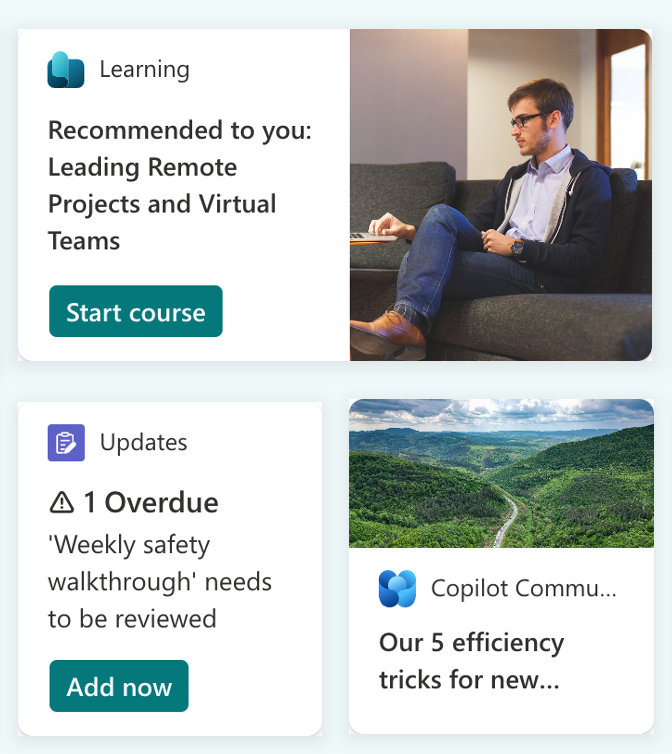
Empower employees to own their growth by surfacing training opportunities and progress updates right in SharePoint—built on Adaptive Cards and Viva Connections:
- Course Progress Dashboard Embed a LinkedIn Learning Adaptive Card (via our pre-built connector) that shows each user’s active courses, completion percentages, and “Continue Learning” buttons.
- Upcoming Training Sessions Use a Microsoft Graph calendar card to list the next three instructor-led workshops, with “Register Now” quick actions.
- Certification Tracker Surface status of key certifications (e.g., Azure Fundamentals, PMP) by connecting to your LMS via a custom Adaptive Card, complete with expiry reminders and renewal links.
- Feedback & Surveys Wrap up learning experiences with a Microsoft Forms Adaptive Card that collects ratings and comments right on the dashboard—triggering a Power Automate flow to feed back into your L&D analytics.
This L&D hub keeps development top of mind, drives engagement with bite-sized actions, and leverages Microsoft’s Adaptive Cards framework to make learning as seamless as sending a chat.
Executive: strategic snapshot of company KPIs

Give leaders the high-level view they crave—powered by Viva Connections:
- Executive Scorecard Use a Power BI Embedded KPI card to display top-line metrics (revenue, margin, churn) with “Drill Into Report” links.
- Industry News Feed Leverage Viva Connections’ built-in RSS Adaptive Card to stream headlines from key publications like WSJ or TechCrunch.
- Copilot Usage Insights Surface Microsoft Copilot adoption stats via a custom Adaptive Card, showing daily active users and top scenarios—so you can spotlight your AI champions.
With the SharePoint Dashboard web part, Viva Connections, and Microsoft’s Adaptive Cards framework, you can craft targeted, interactive experiences for every role—no developer backlog required. Install Adenin’s Dashboard Card App today, and let your teams tap into the tools they need, where they need them.

Ready to turn your intranet into a high-impact, role-tailored dashboard?
👉 Install adenin’s Dashboard Card and start creating your first departmental dashboard today!


