


If you’ve ever tried to display an Outlook calendar on a SharePoint page, you know that it’s not possible with Microsoft’s built-in options, the Events web part or Group Calendar web part. Neither let you showcase events from a specific Outlook calendar. Let’s explore why these native solutions might not meet your needs and introduce a seamless alternative.
The problem: built-in choices have limitations
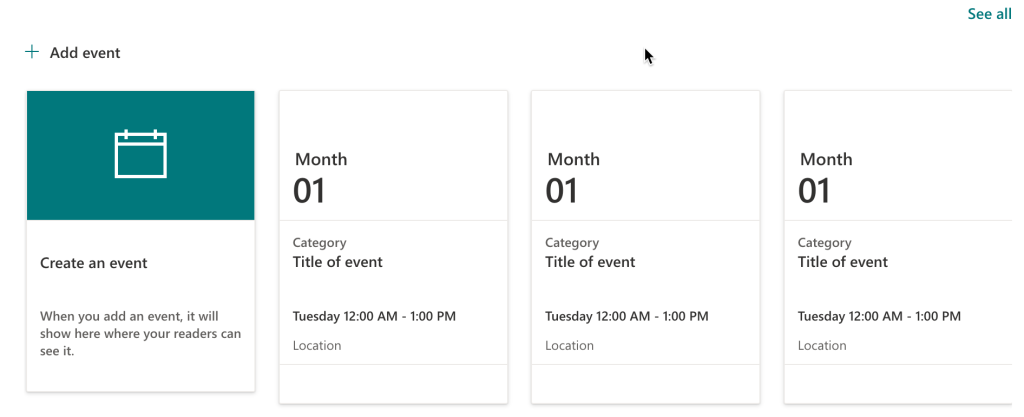
1. Events web part
The Events Web Part requires you to manually add each event, similar to publishing news articles. This process is not only time-consuming but also prone to errors, especially when managing multiple events.
2. Group Calendar web part
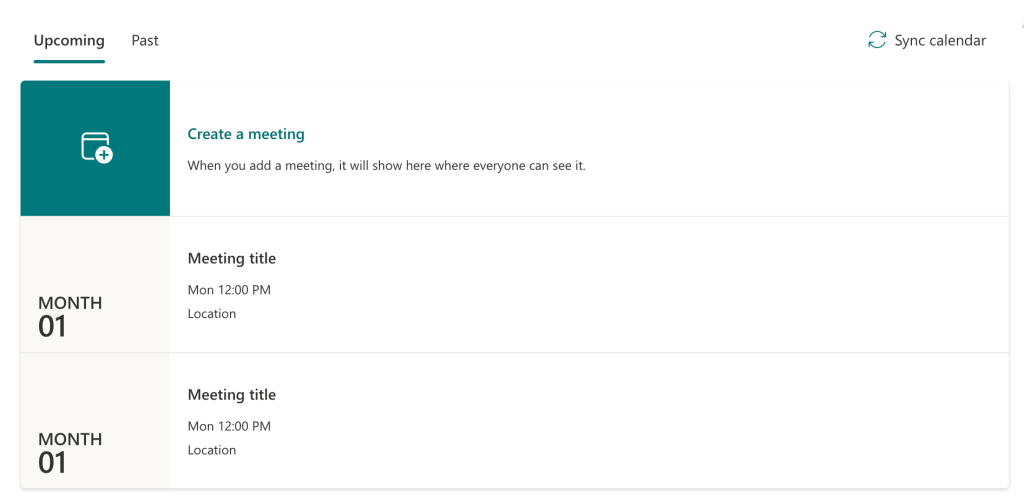
The Group Calendar Web Part displays calendars associated with Microsoft 365 Groups. While it integrates with Outlook, it only shows events from the group’s calendar and lacks customization options. Additionally, it doesn’t support displaying individual or shared Outlook calendars, limiting its applicability.

The Outlook calendar SharePoint integration offers a dynamic way to embed your Outlook calendar directly into a SharePoint page and is an alternative to the built-in web parts.
It provides a layout that’s identical to the Events web part, but dynamically displays events from any Outlook calendar, including shared or individual calendars. This integration ensures real-time synchronization, eliminating the need for manual updates.
Key Features:
- Sync Outlook calendar with SharePoint: Automatically updates in real-time to reflect changes in your Outlook calendar
- Familiar layout: Mimics the native Events web part, ensuring a consistent user experience
- Multiple Calendar types: Display events from any Outlook calendar, including shared or individual ones.
- User-Friendly Interface: Intuitive setup with no coding required.
- Free to Use: Access core features at no cost, with premium plans available for advanced needs

Step 1: Install the adenin Outlook Web Part
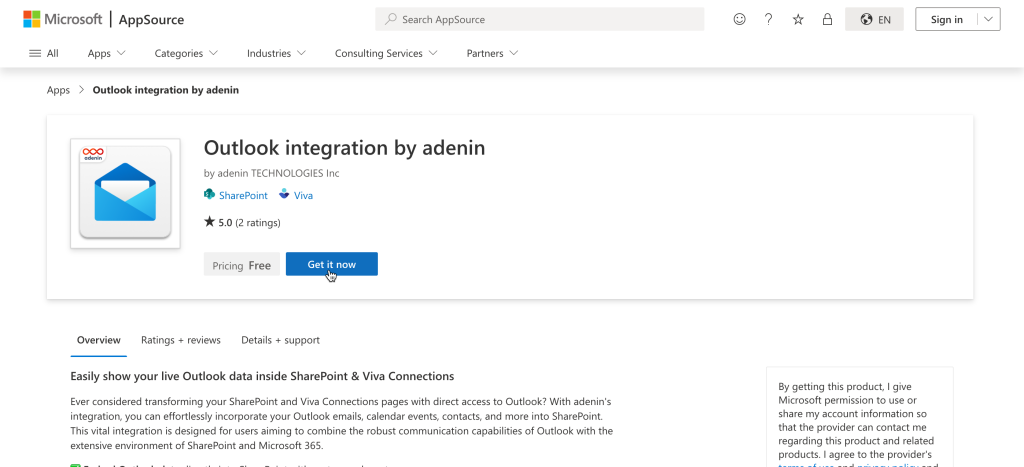
1. Go to the Outlook integration by adenin listing on Microsoft AppSource and click Get it now.
2. This will take you to the SharePoint store where you can click Add to Apps site
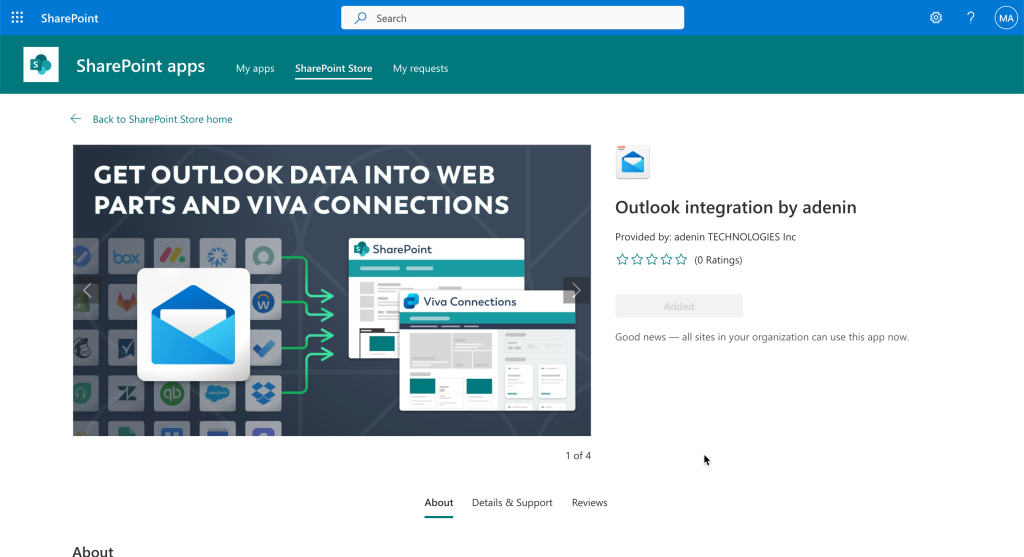
3. Follow the prompts to complete the installation process, by selecting to Enable this app and add it to all sites, and follow and approve prompts to grant API access.
1. Go to the SharePoint page where you want to display the calendar. Click “Edit” at the top right corner of the page.
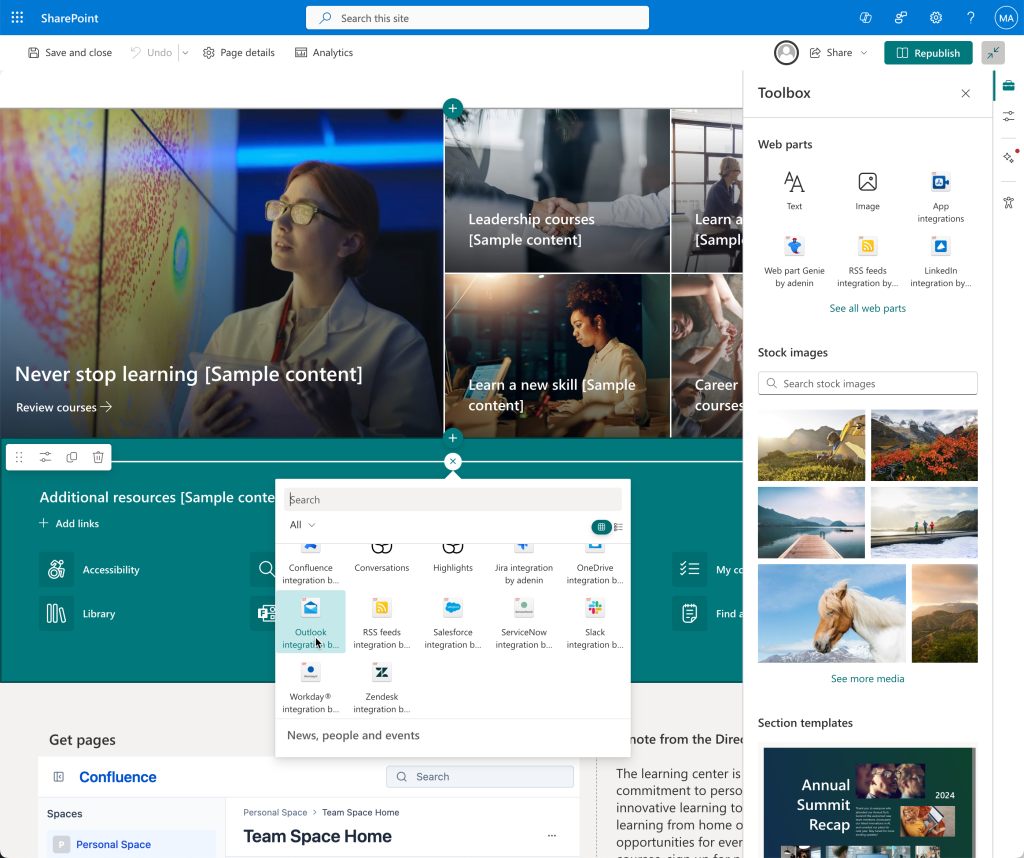
2. Click the ”+” sign to add a new web part. Search for “Outlook” and select the Outlook integration web part.
3. Configure the web part settings to choose the desired calendar and display layout
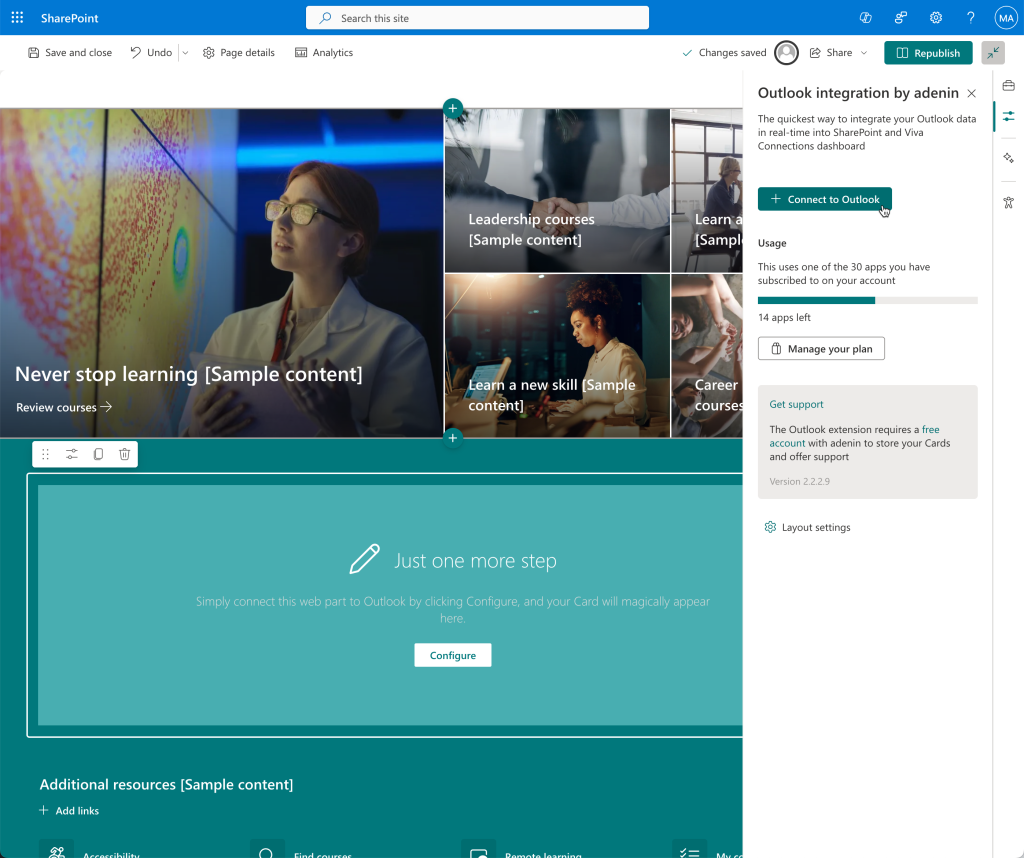
4. Click “Republish” to make the changes live
Step 3: Configure Service Account Mode (optional)
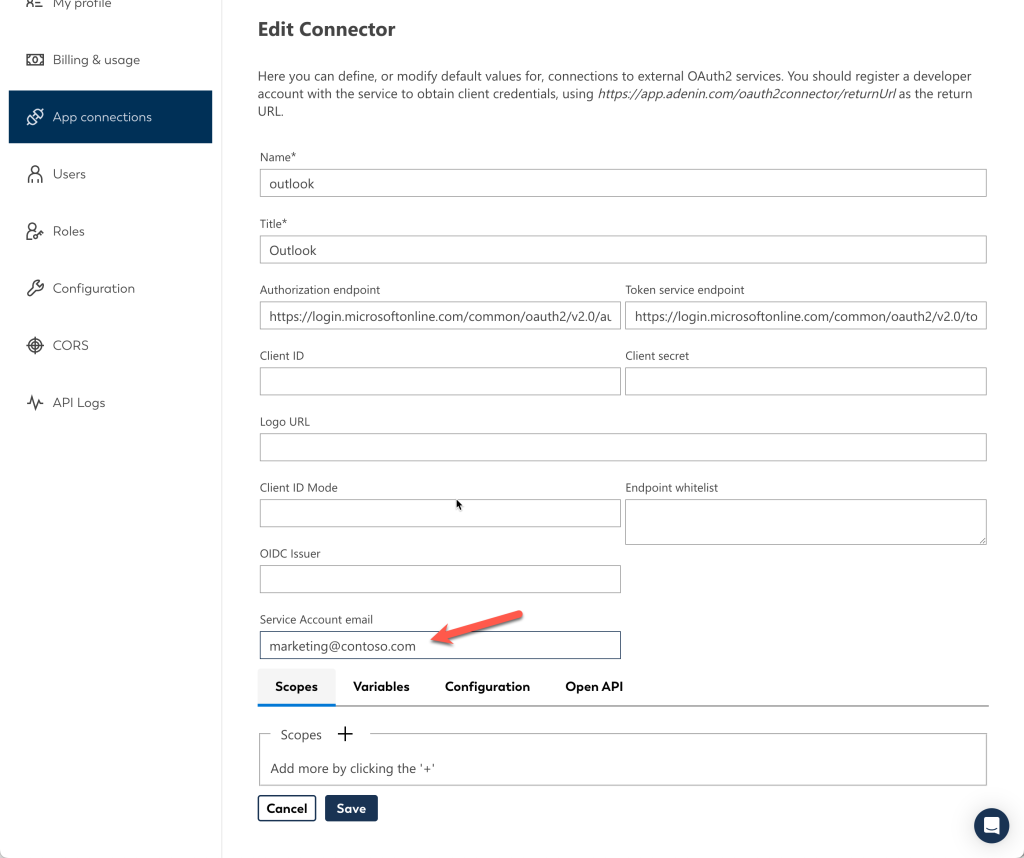
To display events from a specific Outlook calendar, especially shared calendars, configure the web part to use “Service Account” mode:
1. Follow the Service Account setup guide.
2. Use the email address of the Outlook user whose calendar you wish to share on SharePoint.
The result
And that’s all! By simply connecting the web part to your Outlook calendar you can get a beautiful horizontal list of your upcoming events, in an almost identical look to the Events web part, except it’s using live data from your calendar.

Why choose adenin’s Outlook web part?
By integrating the adenin Outlook web part, you eliminate the limitations of SharePoint’s native calendar solutions. It offers a seamless, real-time, and visually consistent way to display Outlook calendars within SharePoint, enhancing collaboration and productivity.
If you want more information, including on what higher usage limits are available on paid plans, or have any questions around how to pick the correct calendar, check out this detailed page.

Download the Outlook calendar web part for free from the SharePoint store now and embed your calendar in the next 10 minutes


