


If you’ve ever wished that SharePoint could automatically pull in up-to-the-minute information from your favorite apps, you’re not alone. For many organizations, SharePoint is the go-to hub for collaboration and communication, but getting data from external APIs into SharePoint has traditionally involved custom code and advanced developer skills.
In this blog post, we’ll explore a hassle-free approach to embedding live third-party data into SharePoint—not a single line of code needed. Whether you’re looking to connect CRM dashboards, project management boards, or other types of business information, you’ll discover a user-friendly solution that can be set up in minutes.

SharePoint excels at creating central hubs for teams to collaborate and access essential resources. Yet, a lot of critical data often remains in disparate apps—CRMs, HR systems, project trackers, and more—leading to information silos. Integrating third-party data directly into SharePoint helps:
- Boost Efficiency: No need to jump between multiple tools to find the latest updates.
- Enhance Visibility: Keep stakeholders informed with real-time dashboards and data feeds.
- Improve Decision-Making: Having all relevant information at a glance helps teams act quickly.
Traditionally, pulling data from external APIs would involve building a custom project using the SharePoint Framework (SPFx). But for many users—especially those without a development background—this route can be time-consuming and resource-intensive.
A No-Code Alternative from adenin
To simplify things, adenin has developed the App Integrations Web Part, which you can install from Microsoft AppSource. This handy web part allows you to embed real-time data from a growing list of apps in the adenin App Directory, or even your own API endpoints that conform to OpenAPI standards.
Key Benefits
- No Developer Needed: Configure the integration through a simple, guided setup.
- Wide App Support: Choose from dozens of existing connectors or use your own OpenAPI specification.
- User-Friendly Configuration: Customize the layout, filters, and styling directly from SharePoint’s interface.
- Free to Start + Free Support: You can explore all the features right away, and if you need a helping hand, you’ll get free technical support.
Step-by-Step Installation Guide
Below is a quick overview of how to install and set up the App Integrations Web Part in SharePoint. For a more detailed walkthrough, check out adenin’s SharePoint instructions.

- Get the Web Part from Microsoft AppSource. Go to the App Integrations Web Part listing on Microsoft AppSource. Select Get It Now to add it from the SharePoint store.
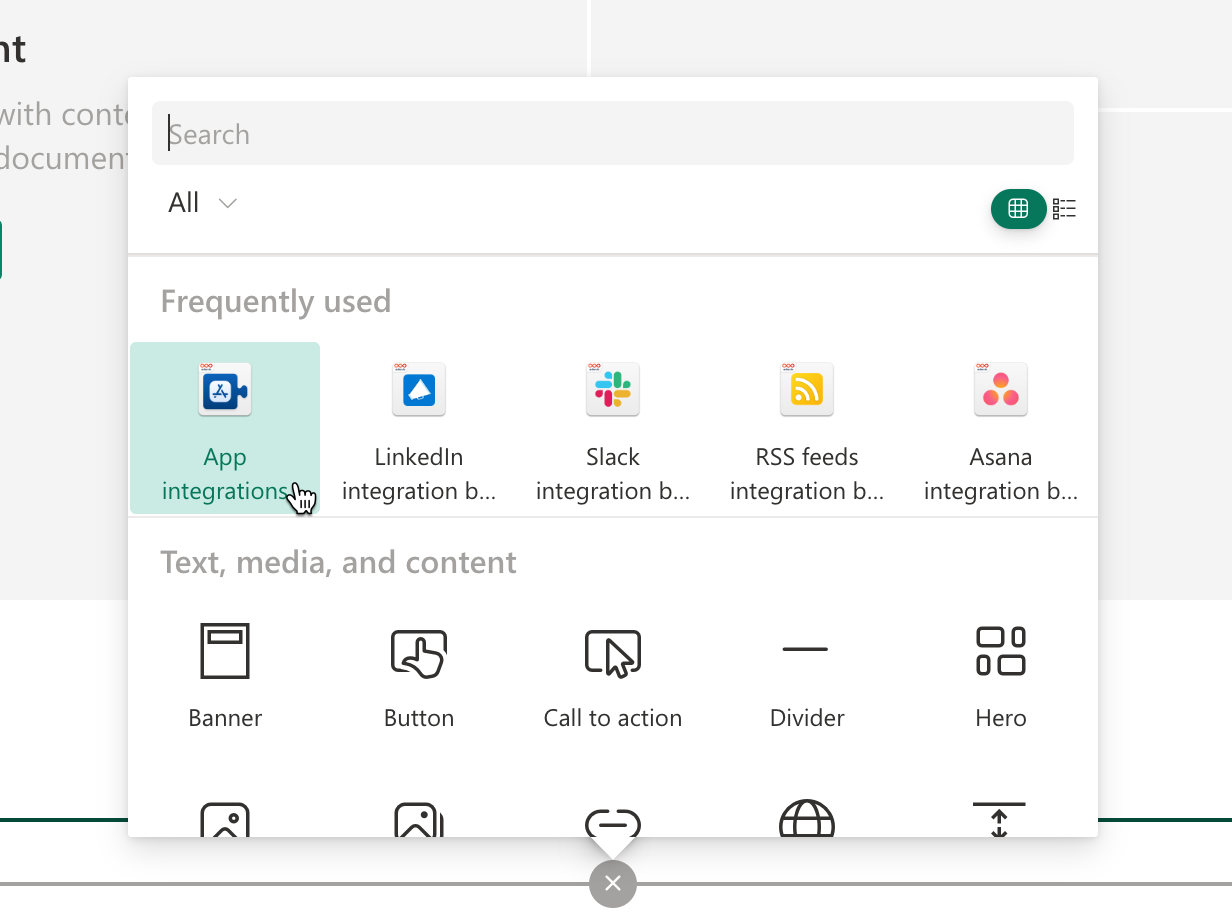
- Add It to Your SharePoint Page. In SharePoint, navigate to the page where you want to embed external data. Click Edit, and then add a new web part by selecting the + icon. Search for “App Integrations” or “adenin” in the web part picker and add it to your page

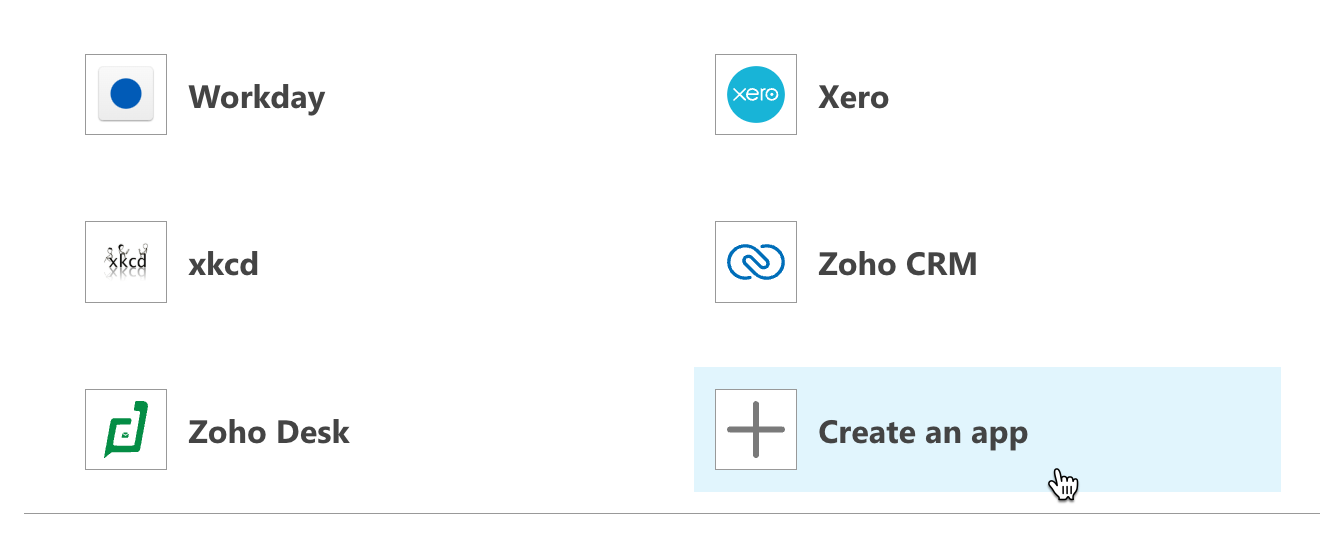
- Configure the Web Part. Once added, click Configure to open the setup panel. Click on + Connect to an app and select one of the apps shown in the popup window. If none of the apps work for you, you can also connect to any OpenAPI app by clicking Create an app
- Save and Publish. After you’ve connected to your app, you can click on Edit in Designer to tweak the layout, or publish your SharePoint page to set the new web part live.
Related: How to build an Adaptive Card web part or ACE
Real-World Use Cases
- Sales Dashboards: Surface lead statuses and revenue forecasts from your CRM directly on SharePoint to keep the sales team and management aligned.
- Project Updates: Show real-time progress from project management tools so everyone knows which tasks are on track and which need attention.
- HR Announcements: Automatically display PTO approvals or onboarding tasks from your HR system in a SharePoint portal for employees to see.
What Makes This Approach Different
- Simplicity: You won’t need to spend hours (or days) coding. Even non-technical users can set it up.
- Time Savings: Traditional methods involve building SharePoint Framework solutions or manually scripting API calls, which can be a significant investment of time.
- Flexible Integrations: Because it relies on OpenAPI standards, you’re not locked into certain platforms or vendors.
- Scalability: Start small with a single data feed and expand to more apps later.
- Cost-Effectiveness: It’s free to get started, and you only pay if you need advanced features. Plus, support is on hand at no cost.
Tips for Success
- Pick the Right Layout: Make sure the data is displayed in a user-friendly format (e.g., list vs. card view).
- Use Filters: If your data source contains a lot of information, set up filters to show only the most relevant items.
- Test Your Setup: Before rolling it out to a wider audience, test the web part on a sample page or site.
- Engage Your Team: Provide a quick tutorial for colleagues so they know how to interact with the new data feeds.
Ready to Get Started?
By integrating third-party API data into SharePoint without writing any code, you can keep your team informed, speed up decision-making, and reduce time wasted on app-switching. The App Integrations Web Part from adenin makes it all possible.
Try it out for free by heading to the App Integrations Web Part listing on Microsoft AppSource. Installation is quick, the setup is intuitive, and if you need a helping hand, free technical support is available.
Why wait? Explore how seamless data integrations can transform your SharePoint experience today!


